Attendance by face.
Fakes don't pass.
>
FaceAttend turns a webcam into a biometric attendance terminal. Employees look at the camera, the software checks that it is a live person, recognises them, and records check-in or check-out — with a live dashboard, monthly reports and Excel exports. No cloud, no subscription server: it runs on the computer you install it on.
- automated tests passing
- 0 54 on Windows + 54 on Linux, plus 25 liveness/PAD tests
- cold start (Windows)
- 0.0 s 1.3–3.6 s on Linux, depending on free memory
- camera pipeline
- 0 FPS laptop webcam, 640×480
- per-frame inference
- 0 ms detect + embed + anti-spoof, CPU only
Measured on the developer's laptop for v1.1.10. Your hardware may differ.
- ·FACE DETECTEDYuNet · 5 landmarks
- ·ALIGNEDsimilarity transform
- ·EMBEDDINGSFace · 128-d vector
- ·LIVENESSblink + head motion
- ·ANTI-SPOOFpassive PAD · real
- ·IDENTITYmatch above threshold
A complete attendance terminal,
in one install.
Everything a small office or factory gate needs — recognition, anti-cheating checks, records and reports — without a server, a cloud account or a monthly bill.
Face recognition
YuNet finds the face and five landmarks; SFace turns it into a 128-number signature. A match needs a clear margin over every other employee, so look-alikes are not guessed.
Liveness check
Before a punch is written, the person must blink or move their head a little across several frames. A still image never completes this step.
Anti-spoof model
A passive presentation-attack model scores skin texture on every frame and blocks printed photos and faces played on a phone or monitor.
Check-in, check-out, early exit
One tap switches the terminal mode. Duplicate punches are refused and a check-out needs a check-in first — even if two requests arrive together.
Live dashboard
Camera view, today's punches, present count and camera FPS update on their own every second or two — no manual refresh, even after a network blip.
Payroll-ready Excel
One protected workbook per period: summary, per-employee totals, every working day (absences included) and the full punch log — late minutes, hours and overtime as real Excel values.
Owner-only management
Employees, face enrolment, reports, exports and settings sit behind the owner password. The attendance terminal itself stays open.
Local and offline
The server listens on 127.0.0.1 only. Faces, records and exports stay in the user's folder; nothing is uploaded anywhere.
Any webcam, automatically
Plug in a USB camera and it is used automatically; without one, the built-in camera. Settings shows a snapshot of every camera to pin one.
One-click updates
The dashboard says when a new version is out. On Windows, Update now downloads, verifies, installs and restarts — data and license stay.
Sound & haptic feedback
A click on every button, a chime when attendance is recorded and a double beep for a repeat punch. Phones and tablets also vibrate.
Self-healing camera
If the live view drops it reconnects by itself, and if the app closes unexpectedly the camera is released within seconds.
From camera frame to attendance record.
Eight stages run on every frame, on the computer's CPU. A punch is only written when identity, liveness and anti-spoof all agree.
Capture
The webcam frame is read continuously. Very dark frames (a covered lens, exposure warming up) are skipped and the dashboard says why.
Real screens. No mock-ups.
Real screenshots of the latest FaceAttend running on Windows. The names and numbers are demo data created for the screenshots.
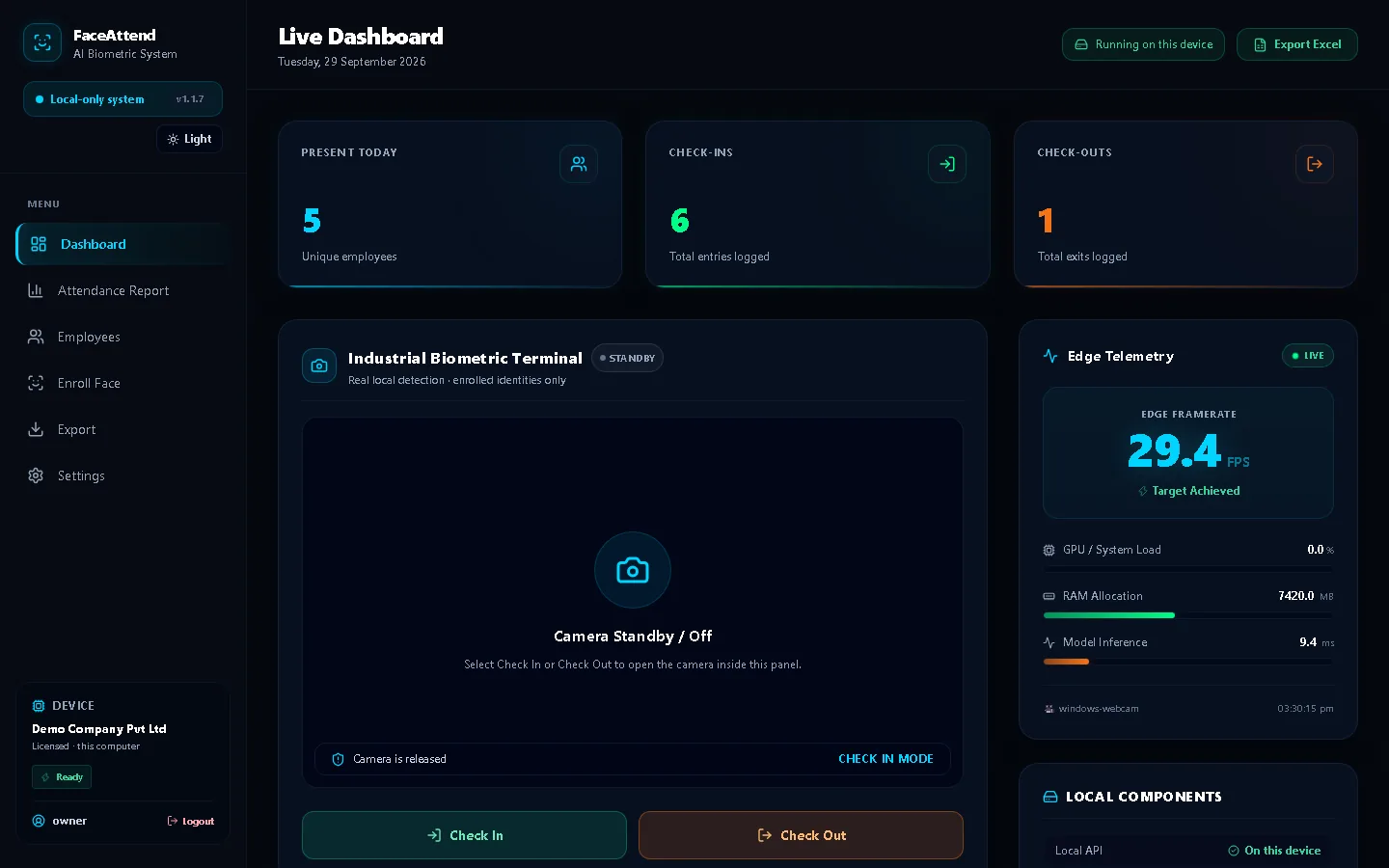
Live dashboard — demo data
Protected software. Private data.
How FaceAttend protects the software itself, your owner account, and the attendance records on your computer.
Compiled to machine code
All FaceAttend code ships as native modules built with Nuitka. The installer contains no source files; the build fails if any are found.
Machine-locked license
Keys are signed with Ed25519. The app holds only the public key, so it can check a key but cannot create one. A copied install asks for activation again.
Owner password
Stored as a salted scrypt hash. Five wrong attempts lock login with a growing delay; a one-time recovery code resets it.
Web-attack guard
Requests must come from this computer's own address. Other websites cannot start the camera, read the live feed or change data.
Camera token
Attendance can only be written by the local camera engine, which holds a random secret created on first run.
Private by design
No accounts, analytics or uploads. Data lives in the user's AppData (Windows) or ~/.local/share (Linux).
Signed updates
Every update is signed with the developer's Ed25519 key. The app installs it only if the signature, the version and the installer's SHA-256 all check out.
Verified downloads
Installers come only from this project's GitHub releases. The SHA-256 of each file is shown on this page so anyone can confirm it.
Private camera stream
The live video is served on this computer only, needs the camera token, and its port cannot be shared or taken over by another program.
Get FaceAttend v1.1.10
Free to download. It opens an activation screen on first launch — you need a license key for that computer to use it (request one below).
14e3d784040d5fdd945e190beab5f628c306788199abe729981654f014825863- 1Download using PowerShell
$setup = Join-Path $env:TEMP 'FaceAttend-Setup.exe' Invoke-WebRequest -Uri 'https://github.com/SHASHWAT-MISHRA-997/FaceAttend-downloads/releases/latest/download/FaceAttend-Setup.exe' -OutFile $setupPaste these commands into PowerShell, not Command Prompt. Or use the download button and double-click the downloaded installer.
- 2Verify and run the installer
Get-FileHash -LiteralPath $setup -Algorithm SHA256Start-Process -FilePath $setup -WaitUse the same PowerShell window. Compare the hash with this release. The installer is not Windows code-signed yet; check its source before accepting a SmartScreen prompt. Choose “Install for me only” without administrator access.
- 3Open FaceAttend
Choose FaceAttend from the Start menu (this is not a terminal command). Your browser opens http://127.0.0.1:3000. Data stays in %LOCALAPPDATA%\FaceAttend.
Files are hosted on GitHub Releases · all versions & checksums
Up and running in six steps.
No Python, no database server, no command line on Windows. Everything the app needs is inside the installer.
Request a license key.
Each key activates one computer. Send the Machine ID from the activation screen and your contact details; the developer replies with the key and pricing.
- Key is tied to that computer's Machine ID.
- Reinstalling on the same PC keeps working; a new PC needs a new key.
- Your data stays on your computer — the form only sends what you type.
Runs on an ordinary PC.
Straight answers.
No. After installation and activation it works fully offline. Internet is only used to download it, to request a license, and to check for updates — without internet it simply skips the check.
Built by one developer.
Shashwat Mishra
Developer · FaceAttend & SMARAN.AI
FaceAttend is designed, built and maintained by one person — the recognition pipeline, the anti-spoof checks, the dashboard, the licensing and this website. Questions, license requests and bug reports are welcome.
Also by Shashwat: SMARAN.AI — a private AI assistant that runs on your machine ↗Put a face to every punch.
Install it on the PC at the door. Activate it once. It is yours after that.